

Application Tools
The Edge Training and Inference Tool provides quick access to video settings, application information, and diagnostic logs from the toolbar in the lower-left corner of the application.

Video Settings
Video Settings allow you to select the camera used to capture images and run Live Predictions.
To configure the camera:
- Click the Settings icon in the lower-left corner of the application.
- In the Video Settings dialog, select a camera from the Video Input drop-down list.
- To update the list of available cameras, click the Refresh icon next to the Video Input field.
- Click the Play button in the preview area to start the camera preview.
- Verify that the correct camera feed is displayed.
- Click SAVE to apply the selection.
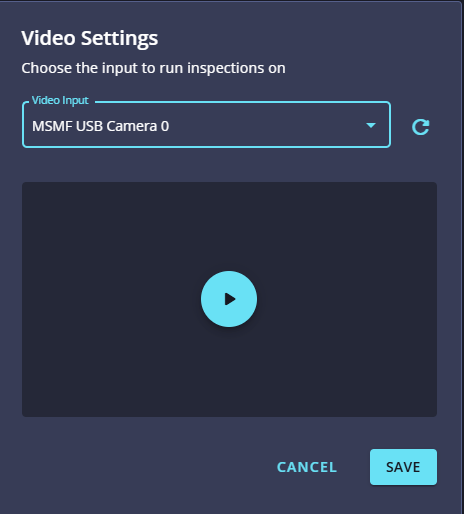
Note: The selected camera is used for both image capture and Live Predictions.
About
Click the About icon in the lower-left corner of the application to view information about the current Edge Training and Inference Tool installation.
The About dialog displays:
- Application version
- Patent and licensing information
- Support resources
- Copyright information
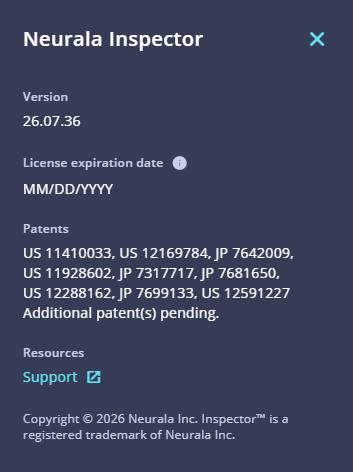
Note: When contacting Support, you may be asked to provide the application version displayed in the About dialog.
Generate Logs
Exporting application logs can help Neurala Support troubleshoot a problem.
To generate and save the log file:
- Click the Generate Logs icon in the lower-left corner of the application.
- Select the location where you want to save the exported log file.
- Wait while the Edge Training and Inference Tool generates the export.
- Verify that the log file was saved to the selected location.
Note: When contacting Neurala Support, include the generated log file, a description of the problem, and the steps that led to it.
Updated 3 months ago