

Creating Brains
Before collecting training images or training a Brain, you must create a Brain and define its objective. When creating a Brain, you will:
- Enter a Brain name.
- Select a Brain type.
- Choose whether to use a Region of Interest (ROI).
Create a Brain
To create a Brain:
- Click + ADD BRAIN at the top of the Brain List.
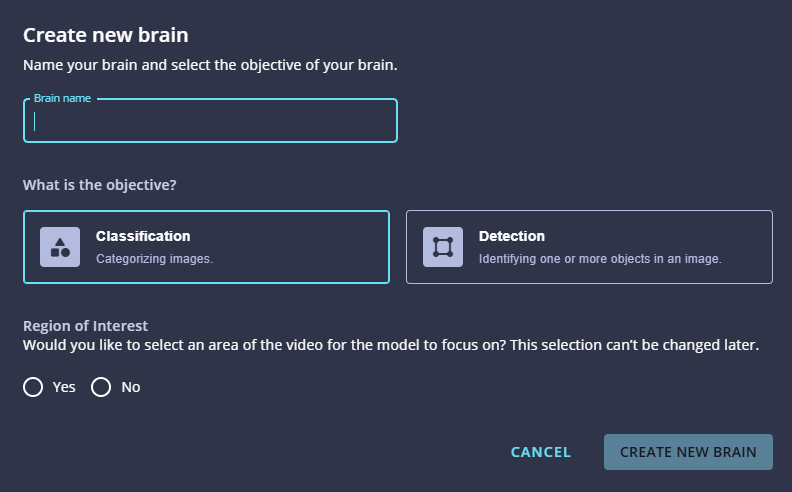
- In the Create new brain dialog, enter a name for the Brain.
- Under What is the objective?, select a Brain type:
- Classification — Categorizes an image as one of the trained classes.
- Detection — Identifies and locates one or more objects within an image.
- Under Region of Interest, choose whether the Brain should focus on a specific area of the image:
- Select Yes to define a Region of Interest.
- Select No to use the entire image.
- Click CREATE NEW BRAIN.
Important: The Region of Interest setting cannot be changed after the Brain is created.
Next Steps
After the Brain is created, the Edge Training and Inference Tool automatically opens the Capture page. From this page, you can create classes, capture training images, and prepare the Brain for training.
Updated 3 months ago
Did this page help you?